Showing posts with label Upload Photo. Show all posts

Wednesday, July 6, 2011

How To Upload Image Using Photobucket


Another website for free hosting service is called "Photobucket", this is a great site to upload your image with huge files. Furthermore, the Photobucket is very offen to be used by webmaster to get URl address image as their main purpose. by uploading many image here, you are not only be able to get URL but also any features you can make like resize,edit, ect especially for you who want to create image, icon,background on your Blog design as well as sharing photo with you friends and family. Today, post let me teach you how to upload image and get URL address in Photobucket. Follow my steps below:

  • Firstly, you must sign up (visit www.photobucket.com).
  • Secondly, on the top navigation, choose "Upload now" on the green color
  • choose what picture or image you gonna to upload here.
  • After you choose one or more, then waiting for the process uploading until finish and save continue in my album.
  • Where to get URL address? just simply click on desire image, on the right sidebar you can see the URL address, just choose where you want to copy and paste for creating your image.

So, now you know more free hosting free to upload image instead of Picasa. Good Luck all 

Monday, July 4, 2011

How To Upload Image In Picasa Free Hosting Service


Today post, i would like to share good article to you in how to upload photo in "Picasa". As we know that Picasa is also associate with Blogger which is belong to Google and of course free. This is great if you upload your photo in Picasa, this is good if you want to add some picture while you are writting an article. The benefit is to make picture look more professional than just usual image. beside that, this site can help you create an image because have an URL address on each image. Ok, let start uploading your pictures, all you need to to just follow my simple steps below:

  • visit on http://picasa.com, you must log in (if you already have google account, use as your username an password).
  • On the top image, choose "Upload".

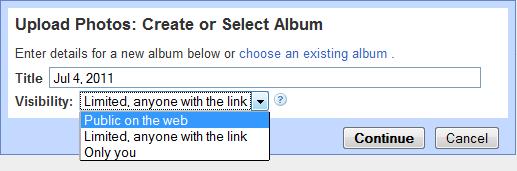
  • Under visibility choose whether you want to set to public or private image click "Continue"
  • Next is to select photo or image from your computer
  • After that, once the image appear then click "OK". Now you have successfully added image in Picasa

Related Posts Plugin for WordPress, Blogger...

Subscribe via email

SIGN UP now if you feel useful information as well as receive other site updates!